 Blogs
How do you lose the cops in GTA 6? Break line of sight, leave the red zone, then clear your heat icons
GTA 6's wanted level now goes up to six stars. To escape, get out of the police's sight, leave the red search area on the map, and clear the heat icons under your stars by changing clothes, cars, looks and splitting up from your partner.
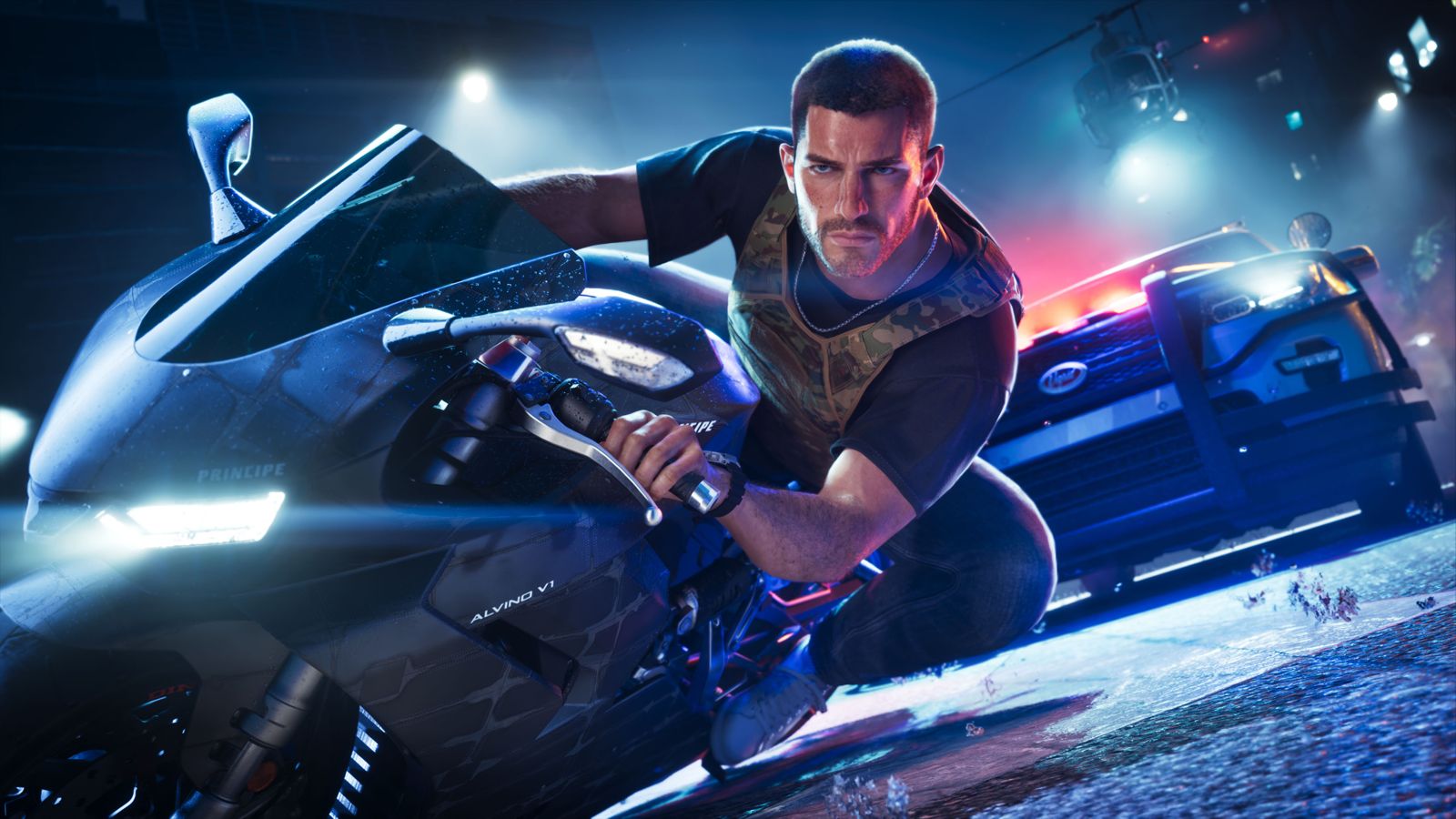
Short answer: get out of the police's sight, leave the red search area on your map without being spotted, then clear the heat icons under your stars. The wanted system in GTA 6 is reworked: the police don't automatically know where you are, and they track what you look like, what you drive and who you're with.
Stars go up to six
Radio Times notes that GTA 5 topped out at five stars, while GTA 6 goes up to six. Polygon says the number of stars depends on how bad the crime is:
- One star: for example a carjacking. One police car with two officers shows up, and they try to arrest you first.
- Two stars: for example robbing and hurting a couple of people. Several police cars respond.
- Three stars: for example a couple of murders. The police add a helicopter.
- Six stars: only after a long crime spree.
More stars mean a bigger red search area on the map. Polygon says almost every crime gets reported, but only if a witness calls it in. A crime with no witnesses, or only other criminals watching, brings no heat at all.
What the star colors mean
Polygon describes four states:
- See-through stars: a crime was reported, but the police don't know who did it yet.
- White stars: the police have seen you and are chasing you. Flashing white stars mean they're losing you.
- Gray stars: they've lost sight of you but are still searching.
- Red stars: you're wanted inside the red area on the map, your last known location.
The heat icons, and how to clear each one
Icons under the stars show what the police know about you. GameSpot and Polygon list six:
- Appearance (head): put on or take off a cap, glasses or mask, or get a haircut. Polygon warns that putting on a mask after the crime only makes you look suspicious.
- Outfit (clothes hanger): change clothes. Keep a spare outfit in your car's trunk or buy one at a shop.
- Vehicle (car): swap cars, or respray yours at a Pay 'n' Spray once you've lost the police.
- Visible weapon (gun): holster your pistol. Long guns can't be hidden, so drop them or put them in the trunk.
- Partner (two heads): split up from Jason or Lucia.
- CCTV (camera): destroy the recorder at the scene, often behind a shop's counter. If the icon shows a cloud, the footage is stored online and can't be destroyed.
Step by step
- Run first, fix icons later. Polygon says to use your fastest vehicle, then hide by swapping cars, going off-road, diving underwater or going inside a building.
- Don't make it worse. Shooting cops or hitting civilians raises your stars. Radio Times suggests aiming at non-lethal spots and shooting out tires instead.
- Clear the heat icons out of sight. If the police spot you while the icons are still showing, Polygon says the chase starts again.
- Leave the red zone and stay away. Radio Times says if you're spotted or commit another crime there, your wanted level comes back. Polygon says the wanted status takes longer to fade the more stars you had.
If you're caught or killed, Radio Times says you lose some cash, but you can get your own weapons back from your car's trunk or an Ammu-Nation weapon locker.
Official or not?
- In the game: the stars, heat icons and red search area are part of the game, and the guides describe them from playing the launch version.
- Guides, not Rockstar: the step-by-step tips, the examples of which crimes give how many stars, and the advice on escaping come from Polygon, Radio Times and GameSpot. Rockstar hasn't published its own guide to losing the police.
GTA 6Rockstar GamesGamingGuides
Sources
- How to lower your wanted and heat level in GTA 6 (Polygon) (opens in a new tab) · polygon.com
- GTA 6 heat system explained: How to reduce wanted level and lose the cops (Radio Times) (opens in a new tab) · radiotimes.com
- GTA 6 Tips: Everything I Wish I Knew Before I Started Playing (GameSpot) (opens in a new tab) · gamespot.com